Creating Template
Account templates are used to define a standard set of properties that can be applied to a new account.
There are two ways to create an account within the IceWarp Server console:
-
In Global Settings
-
In a domain
Global Settings
Global Settings > Templates tab.
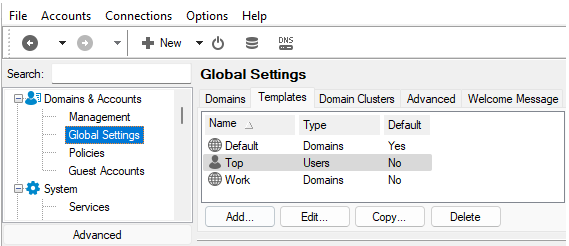
Figure. Global Settings level management: Templates tab.
Domain
Select a domain, go to the Templates tab.
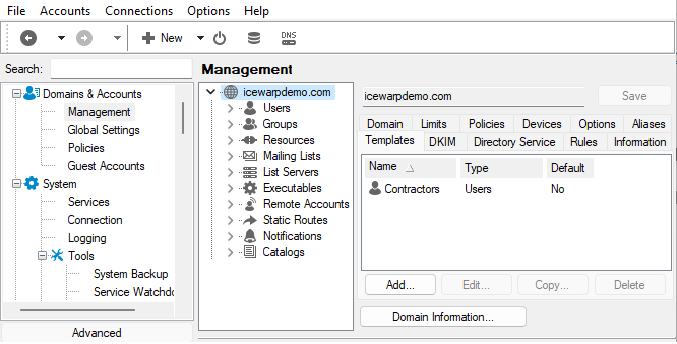
Figure. Domain level management: Templates tab.
Note: You can create domain account templates within Global Settings. However, you can not create them within a {domain}.
Each template only applies to a specific account type (user, group, etc.).
You can create templates of the same name within Global Settings and also within multiple domains, and these are not the same templates.
You can create a default template for account types. When an account of that type is created, this default template will be applied. There should only be one default template for each account type.
Templates List
Selecting the Templates tab will present you with a list of all templates defined within the selected domain (or Global).
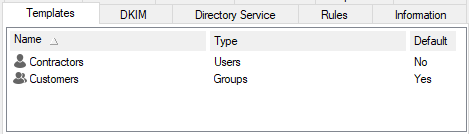
Figure. Templates tab: Templates list.
Example:
There are two templates defined:
- Contractors: which can only be applied to user accounts, and is not a default template, so will be applied to new user accounts only if selected..
- Customers: which applies to group accounts, and is a default one, so will be applied automatically.
Selecting a template and clicking the Delete button deletes this template (or templates if more than one are selected).
Pressing the Add or Edit button will open the Template dialog.
Template Dialog
In the top area, above the tabs, you choose the Name of the template, the Type of account it can be applied to, and whether it is a Default template (i.e. automatically applied to all newly created accounts of the type selected).
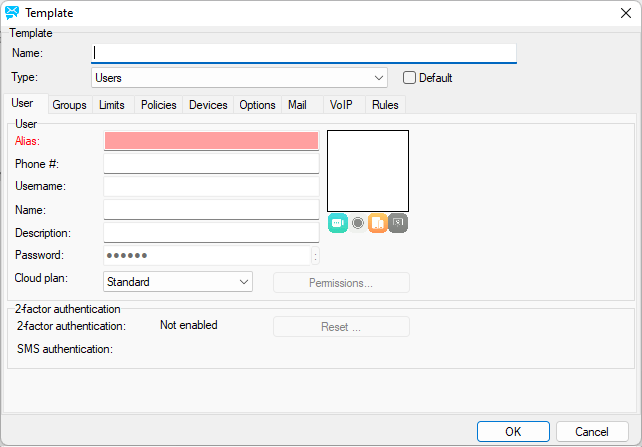
Figure. Template dialog.
Note: If you expand the Type drop-down menu, you will see all account types. If the dialog is accessed via the Global Settings > Templates tab, this list offers also the Domain type. When using the Domain level management {domain} > Templates tab, this type is not listed.
Tabs and fields below the Type drop-down menu change according to the account type selected. It reflects the options available for this account type. These options are explained in the relevant manual sections related to the appropriate account types. Note that not all options are available as it is not sensible to have them in a template.

